
- Select "Officers" on the left blue menu.
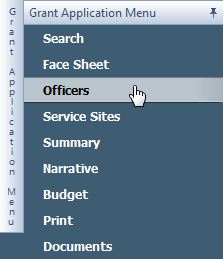
- Using the dropdown menu, select the Officer Type you would like to enter first.
Project Director will only let you select a name associated with your organization. Fiscal Officer and Civil Rights Contact will allow you to select any name in the GMS.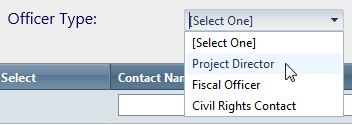
- The person you are looking for may not be on the first screen of names. Type the first several letters of their first or last name into the Contact Name field and hit Enter. This will narrow the displayed names.
Please note: Searching using the format firstname lastname will not work. Names here are stored as lastname, firstname. Typing one or the other, or only several letters of either, will usually be sufficient.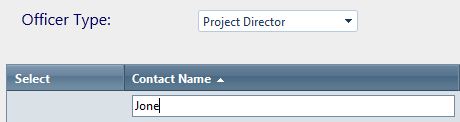
- When you see the person's name in the list below the search box, click the blue circle with a check mark inside it. This will add the person to your grant application as the Officer Type that you selected in step 2. The added individual will now appear in the list above the Officer Type dropdown.
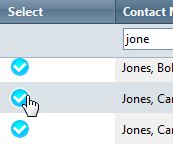
- Repeat Steps 2–4 for each of the three Officer Types.
If you need to change an Officer that is already entered, select the Officer Type that you need to change, and follow Steps 2–4. Your new choice will replace what was previously entered, as there can only be one individual assigned to each type.
Note: There is no need for a "Save" button on this page. When you click the blue circle in Step 4, that "Saves" the Officer.
Entering Officers in a grant application Print
Modified on: Thu, 18 Apr, 2013 at 4:05 PM
Did you find it helpful? Yes No
Send feedbackSorry we couldn't be helpful. Help us improve this article with your feedback.